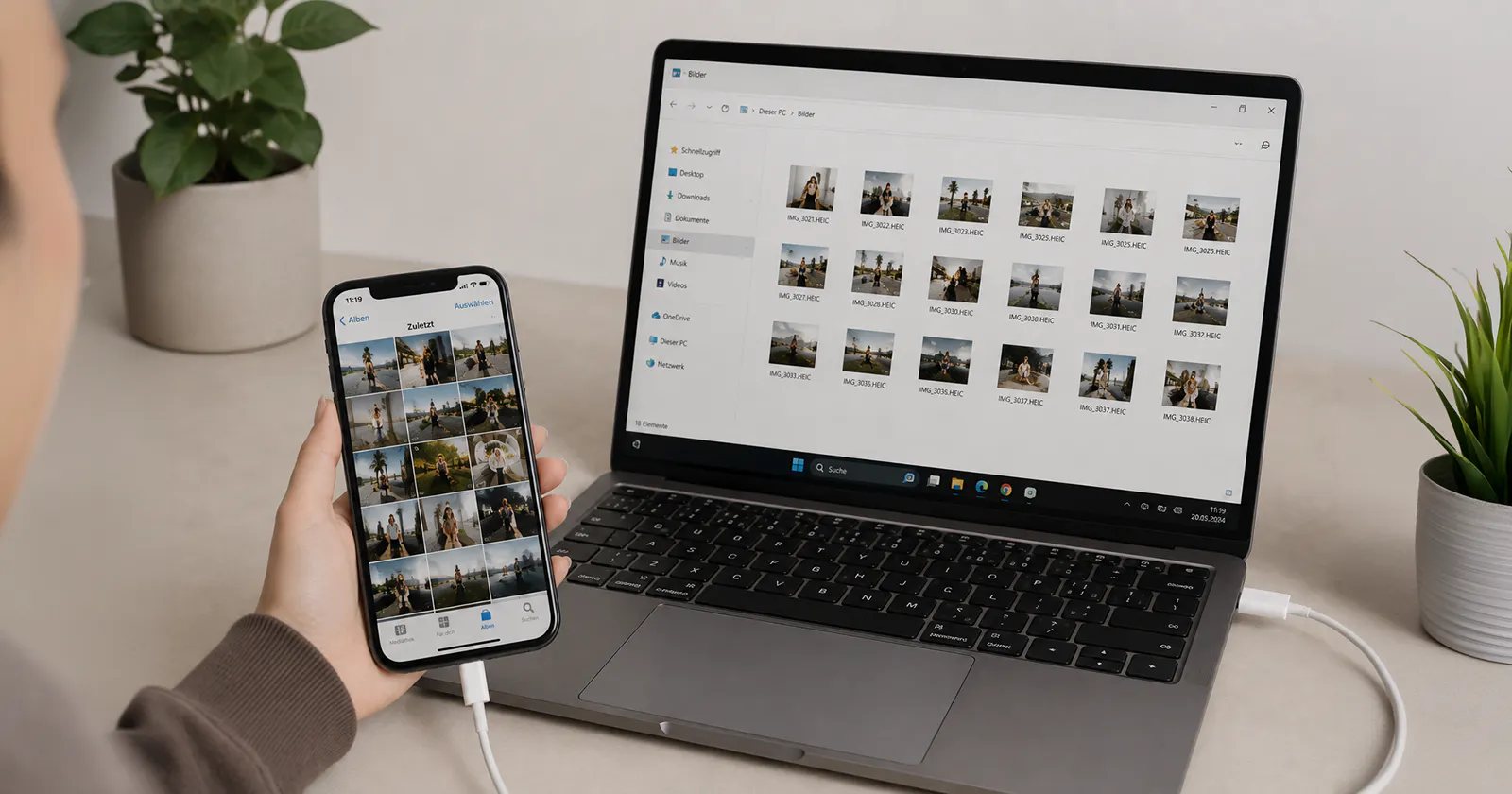
Transfer photos from iPhone to PC via USB
If you want to transfer lots of photos at once, USB is often the easiest option. You don’t need an internet connection.
For Windows, Apple recommends using the Apple Devices app together with the Microsoft Photos app. Unlock your iPhone before connecting it to your PC. If a prompt appears on your iPhone, tap “Trust” or “Allow”.
Here’s how to import your photos:
- Connect your iPhone to your PC with a USB cable.
- Unlock your iPhone.
- Tap “Trust” or “Allow” if a prompt appears.
- Open the Windows Photos app on your PC.
- Select “Import” and then your iPhone.
- Select the photos you want and start the import.
When importing, you can choose which photos you want to transfer and where you want to save them on your PC.
Your PC doesn’t recognise your iPhone? Check the cable first. Not every USB cable supports data transfer. If necessary, try a different cable or USB port.
Transfer photos to your PC with iCloud
Don’t want to transfer your photos manually every time? You can use iCloud to sync them between your iPhone and Windows PC.
To do this, enable iCloud Photos on your iPhone. Your photos will then be synced with iCloud. With iCloud for Windows, you can also access them from your PC. The Microsoft Photos app also supports iCloud Photos integration.
Good to know: If iCloud Photos is enabled, some original files may only be stored in iCloud. This means they might not appear when importing via USB. If you want to transfer these photos by cable, first download the full-resolution originals to your iPhone.
Transfer photos with another cloud service
Already using Google Photos, OneDrive or Dropbox? You can also use these services to transfer photos from your iPhone to your PC without a cable.
It’s simple:
- Install your preferred cloud app on your iPhone.
- Enable automatic photo uploads.
- Sign in to the same account on your PC.
- Download or sync the photos you want.
This method is particularly useful if you want to access your photos across multiple devices. However, you’ll need an internet connection for uploads and downloads. You should also check how much cloud storage you have available.
What to do if your PC doesn’t recognise your iPhone
Your iPhone isn’t showing up on your PC? First, check the connection and make sure your iPhone is unlocked.
These steps can help:
- Unlock your iPhone and reconnect it to your PC.
- Tap “Trust” or “Allow” if a prompt appears on your iPhone.
- Try a different USB port.
- Use a different cable and make sure it supports data transfer.
- Keep Windows and the required Apple apps up to date.
- Using iCloud Photos? Check whether the original files you want are stored on your iPhone.
Want to transfer not only photos, but also contacts, apps and other content to a new smartphone? Our guide “Transfer data to a new phone | yallo” shows you how, step by step.
USB, iCloud or cloud service: Which option is right for you?
The best method mainly depends on how and how often you want to transfer your photos.
USB is a good choice for a larger, one-off transfer. You don’t need an internet connection and can save lots of photos directly to your PC.
iCloud is the easier option if you want your photos to sync continuously between your iPhone and PC.
Other cloud services make sense if you already use Google Photos, OneDrive or Dropbox, or if you want your photos to be available across different devices.
In short: transferring photos from your iPhone to your PC doesn’t have to be complicated. USB is a good choice for transferring lots of photos at once. For continuous syncing, a cloud solution is the better option.
Switching to a new smartphone at the same time? Our guide
“Set up a new phone | yallo” takes you through the most important settings step by step.
And if you still need the right plan for your new smartphone, discover yallo mobile offers nd find the plan that suits you.
FAQ: Transfer photos from iPhone to PC
Why aren’t all my iPhone photos showing up on my PC?
If you use iCloud Photos, some original files may only be stored in iCloud. These photos might not appear when importing via USB. First, download the full-resolution originals you want to your iPhone and then start the import again.
Can I transfer iPhone photos to my PC without a cable?
Yes. With iCloud or another cloud service, you can transfer or sync your photos wirelessly. You’ll need an internet connection.
Why doesn’t my PC recognise my iPhone?
First, check that your iPhone is unlocked and that you have confirmed the trust prompt. Then try a different USB port or cable. Important: The cable must support data transfer as well as charging.
What does HEIC mean for iPhone photos?
Depending on your camera settings, your iPhone may save photos in HEIF format. These files often use the HEIC extension.
If you want your photos to work with as many devices and programs as possible, go to “Settings” > “Camera” > “Formats” on your iPhone and select “Most Compatible”. Your iPhone will then save new photos as JPEG files and videos as H.264.
Can I delete my photos from my iPhone after transferring them?
If you want to free up storage space, first check that all the photos you want have been successfully transferred to your PC. Also keep in mind that if photo syncing is enabled, deleting photos may affect the synced images as well.