How does a QR code work?
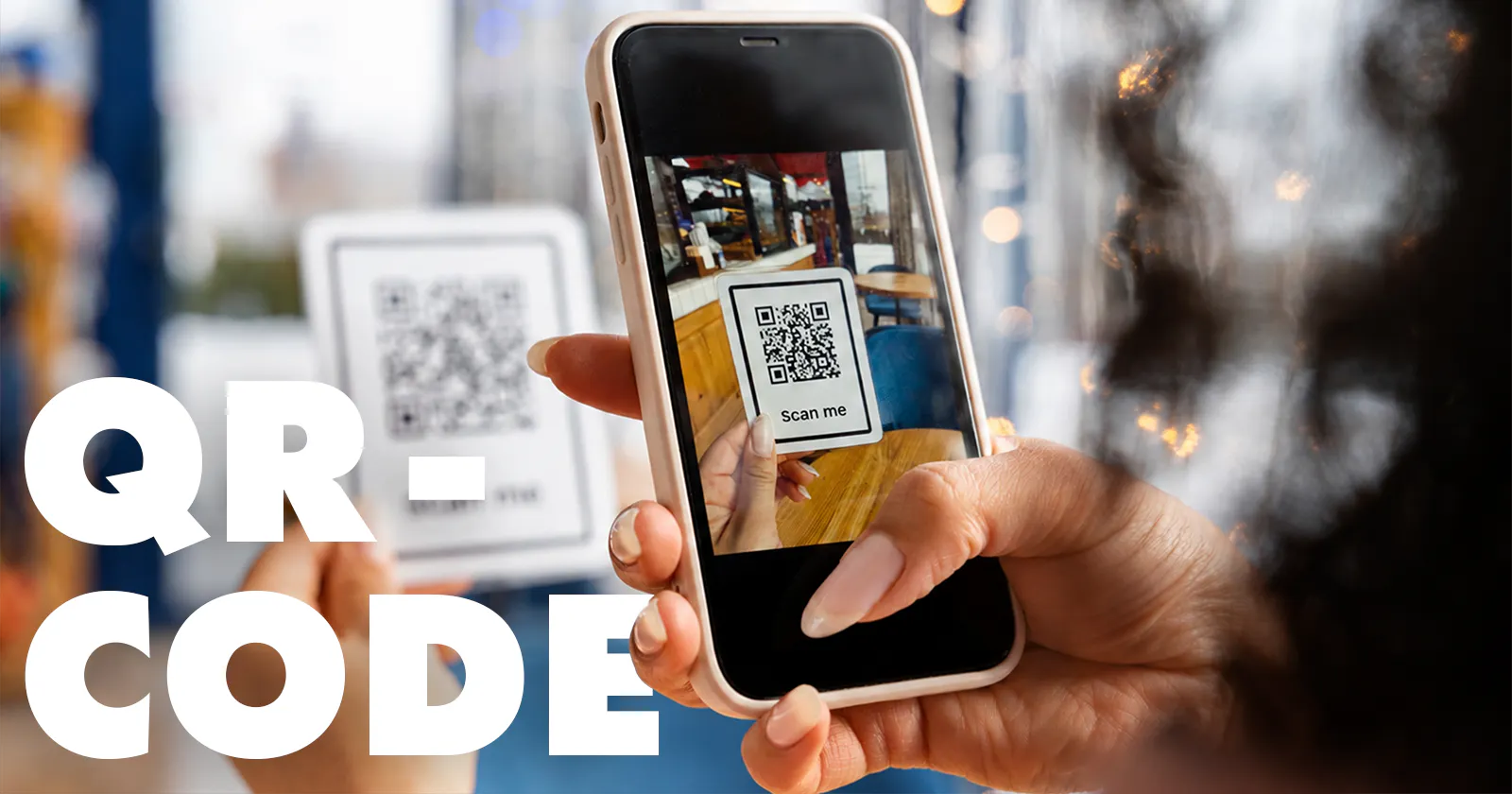
QR stands for “Quick Response”. A QR code stores information in a two-dimensional pattern. It can contain a web address, contact details, Wi-Fi information or other data.
Your phone’s camera recognises the pattern and reads the stored information. If the code contains a URL, your phone displays a link. The website only opens when you tap it, giving you a chance to check the destination first.
How do you scan a QR code with an iPhone?
You don’t need an extra app to scan QR codes on an iPhone:
- Open the Camera app.
- Point the camera at the QR code.
- Wait for the link to appear on the screen.
- Check the web address, then tap the link.
You can also open the Code Scanner from Control Centre. If the lighting is poor, the torch can help.
How do you scan a QR code with Android?
On many Android phones, you can scan a QR code directly with the camera:
- Open the Camera app.
- Point it at the QR code.
- Wait for a link or suggested action to appear.
- Check the destination, then tap it.
The exact steps depend on the manufacturer and camera app. If your camera doesn’t scan QR codes directly, you can use Google Lens on compatible devices.
What if your iPhone doesn’t recognise the QR code?
Hold your iPhone steady and make sure the entire code is visible on the screen. Check that there’s enough light and that the camera lens is clean. If the code is damaged, blurry or partly covered, the camera may not be able to read it.
Do you need a QR code scanner app on your phone?
Usually not. iPhones and many Android phones already have this feature built in. Check your Camera app or built-in image recognition first before installing another scanner app.
That saves you an app and any additional permissions it might request.
How do you scan a QR code on your own screen?
Is the QR code displayed on your own phone? You don’t need a second device. Save the code as an image or take a screenshot.
On Android, open the image in Google Photos and tap the Lens icon. Google Lens reads the QR code and shows you what it contains.
On an iPhone, open the image in the Photos app and touch and hold the QR code. If your iPhone recognises it, an action appears, such as a link you can tap. Simply opening the image may not be enough.
This is useful when you receive a QR code by email or messenger.
Are QR codes safe?
A QR code is simply a way to store data. The risk lies in where it takes you. You can’t tell from the black-and-white pattern whether it leads to a company’s genuine website or a fake one.
The two-second check before opening a link
Look at the web address displayed before you tap it. Does the domain match the provider you expect? Does it contain spelling mistakes or an unusual string of characters? If so, don’t open the link.
Take a closer look at QR codes in public places. Someone could place a sticker over the original code to send you to a different website.
Be especially careful if an unfamiliar website asks for passwords, payment details or other sensitive information. The QR code is only a signpost. What matters is where it leads.
FAQ: Scanning QR codes with iPhone and Android
Why doesn’t my camera recognise the QR code?
First, check the lighting, distance and camera lens. The entire QR code must be visible and in focus. On Android, Google Lens may also help.
Can I scan a QR code from a screenshot?
Yes. On Android, you can use Google Lens to read a saved image. iPhones can also recognise QR codes in photos.
Can a QR code be dangerous?
A QR code can lead to a fraudulent website. Check the web address before opening the link, and don’t enter sensitive information on a suspicious site.
Do I need to install a QR code scanner?
Usually not on a recent smartphone. iPhones and many Android devices can recognise QR codes using the camera or built-in image recognition.