How to connect your smartwatch to your phone: step-by-step guide
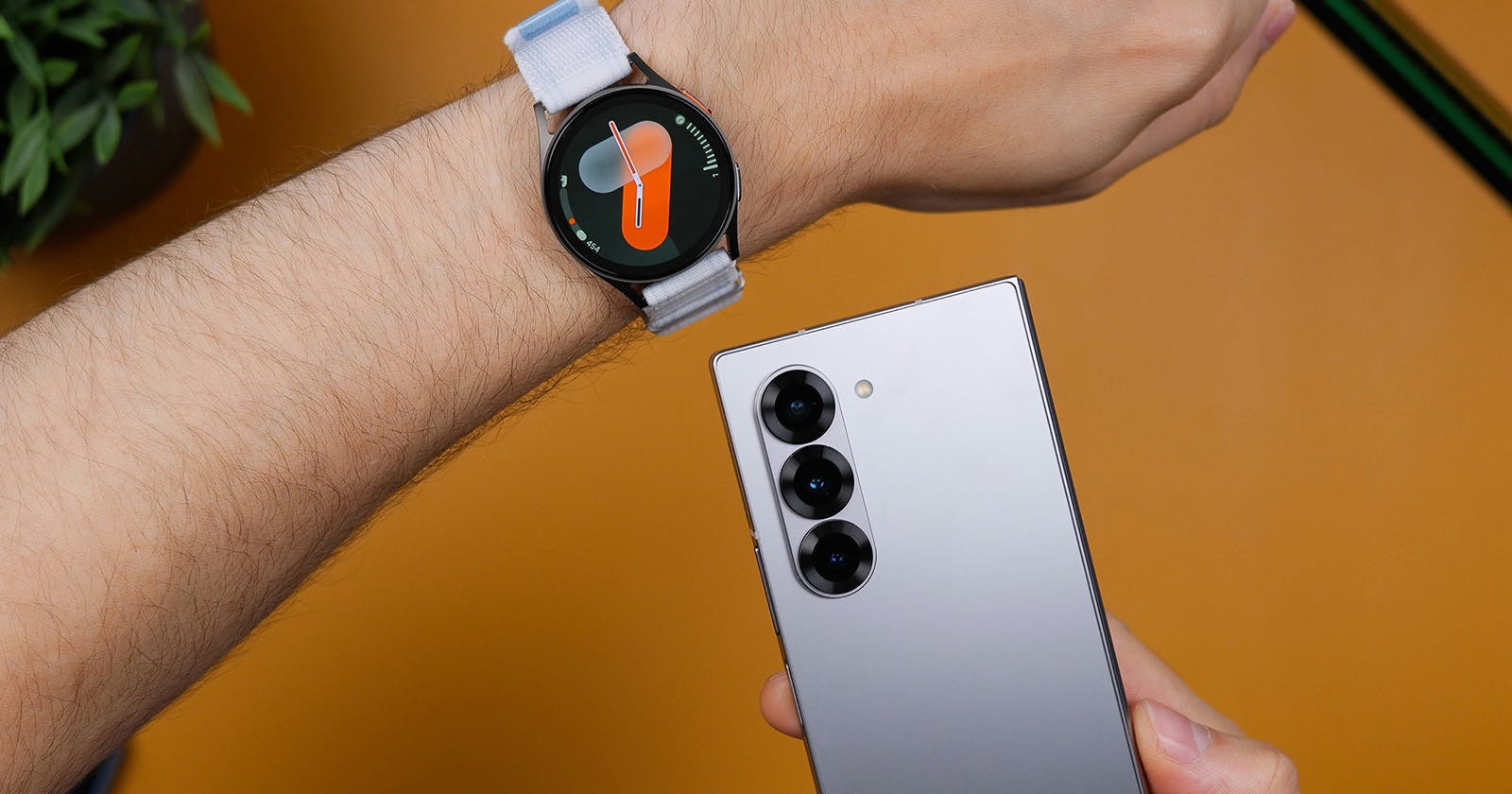
A smartwatch brings your smartphone right to your wrist: notifications, calls, fitness data, navigation and music control become accessible without taking your phone out of your pocket. For everything to work smoothly, the watch and smartphone must be paired correctly. The process differs depending on the system, but it always follows the same basic steps: prepare the devices, install the companion app, complete the Bluetooth pairing and grant the right permissions. In this guide you’ll find clear explanations for Android, iPhone and Samsung Galaxy Watches, as well as troubleshooting tips and advice for a smooth setup.
02.12.2025 | Reading time: 11 minutes
How to connect your smartwatch to your phone: step-by-step guide
A smartwatch brings your smartphone right to your wrist: notifications, calls, fitness data, navigation and music control become accessible without taking your phone out of your pocket. For everything to work smoothly, the watch and smartphone must be paired correctly.
The process differs depending on the system, but it always follows the same basic steps: prepare the devices, install the companion app, complete the Bluetooth pairing and grant the right permissions. In this guide you’ll find clear explanations for Android, iPhone and Samsung Galaxy Watches, as well as troubleshooting tips and advice for a smooth setup.
First steps when pairing your smartwatch
Before you start pairing, you should check a few basics: make sure the correct app is installed, Bluetooth is enabled, and both devices have sufficient battery. Many modern smartwatches display a QR code when switched on for the first time, which takes you straight to the right app.
After pairing, it’s worth running a firmware update and checking notification permissions so that all apps sync properly.
Preparing for smartwatch pairing
To make sure the connection between smartphone and smartwatch is stable and error-free, a few basics must be right. Both devices should run a current software version, as outdated operating systems and apps often cause pairing problems.
Before you begin, check whether updates are available and install them if possible.
Smartphone, smartwatch and battery level
For successful pairing you’ll need:
- a smartphone with a current Android or iOS version
- Bluetooth switched on
- a stable internet connection for app download and updates
- a smartwatch that is sufficiently charged, ideally at least fifty percent battery
Practical tip: Keep a charger for both devices handy during setup. This prevents pairing, firmware updates or longer synchronisations from being interrupted by an empty battery.
Apps and permissions
For pairing you need the official companion app from the manufacturer, for example Wear OS, Galaxy Wearable, Huawei Health, Xiaomi Mi Fitness, Amazfit ZEPP or Apple’s Watch app. After installation you must grant important permissions. These usually include:
- Bluetooth
- Notifications
- Contacts and phonebook
- Location access (important for GPS and connection functions)
Only when these permissions are set correctly can the watch and smartphone exchange data.
Basic steps for pairing your smartwatch
Pairing follows the same general pattern for most smartwatches. Once you know the individual steps, you can connect new watches quickly and without frustration.
Step by step for all models
- Activate Bluetooth: Switch on Bluetooth on your smartphone and start the smartwatch.
- Open the companion app: Launch the appropriate manufacturer app and select the option to add a new watch.
- Select watch or scan QR code: Choose your watch model from the list or scan the QR code on the watch display.
- Check and confirm codes: A numeric code or confirmation window appears on both devices. Check that the codes match and confirm the connection.
- Grant permissions: Allow the app to access notifications, contacts and health data so all functions sync correctly.
If your watch offers calling features, one additional Bluetooth step may be required so that calls and contacts are displayed correctly.
Specific instructions depending on system
The exact process differs by manufacturer and operating system. Whether it’s Apple Watch with iPhone, Wear OS watch with Android or a manufacturer-specific solution – these differences determine how pairing works and which functions are available. Ideally, you explain these in separate instructions for Apple, Android and Wear OS.
Android smartwatches (Wear OS and others)
Many smartwatches for Android use Wear OS, while other models rely on their own apps. The process is similar: after you install the manufacturer app, the setup assistant guides you through the entire pairing.
Pay attention to the following points:
- keep Google Play Services up to date, as Wear OS relies on them
- allow location access, otherwise the app often can’t find the device
- install firmware updates directly after the first connection
- if you use multiple Google accounts, check which account the watch should sync with
A clean setup saves time later, especially for notifications and health data.
iPhone and Apple Watch
The Apple Watch can be paired only with an iPhone. The basis for this is the preinstalled Watch app. After switching on, the watch shows an animated pattern that you scan with the iPhone camera. The process is very stable and intuitive because Apple controls both hardware and software.
Important: Android watches can sometimes be paired with an iPhone, but they are usually heavily limited. The Apple Watch does not work at all with Android devices.
After pairing you should check whether:
- Notifications are transferred correctly
- Health and activity data sync properly
- Apple Pay is set up (if you want to use it)
Samsung Galaxy Watches
Samsung offers different apps depending on the model. Most modern Galaxy Watches use Galaxy Wearable, while health data is synced via Samsung Health. Some models run Wear OS, others Samsung’s Tizen system; the app automatically tells you which process to follow when you start it for the first time.
Pay attention to:
- Activating Bluetooth and location access
- Granting background rights so messages arrive reliably
- Logging in with a Samsung account to use backups and health features
If notifications don’t appear, this is often due to battery optimisations on the smartphone. These should be disabled for Galaxy Wearable.
Common problems and how to solve them
Even with a correctly set up smartwatch, connection problems can occur. Common causes include Bluetooth conflicts, missing permissions or restrictions on the app’s background activity. With a few targeted checks you can fix most issues quickly.
Watch is not found
If your smartwatch does not appear in the device list, a restart often helps:
- Briefly switch Bluetooth off and on again
- Restart the smartphone and the watch if necessary
- Check whether the watch is actually in pairing mode
If it is still not found, you can reinstall the companion app or reset the watch to factory settings and try pairing again.
Notifications are not coming through
If notifications don’t arrive, important app permissions are usually missing:
- Allow the companion app to access notifications
- Deactivate battery optimisation for this app
- Check in the app which apps are enabled for notifications
This ensures that messages, calls and app alerts arrive reliably on your watch.
Phonebook or call display is missing
For contacts and calls to appear on the watch, the app needs the correct permissions:
- Allow access to contacts and phone
- Check in the Bluetooth settings whether all additional connection profiles are activated for your watch
For some models, a second Bluetooth profile is required so that incoming calls appear correctly on the smartwatch.
Sync problems with health data
If steps, heart rate or other health data don’t sync:
- Make sure Bluetooth and the internet connection are stable
- Check whether app and firmware are up to date
- Log out and back into the app or clear the app cache if data is still missing
Often, logging in again is enough for all health data to sync correctly.
Security and data protection
Health data is particularly sensitive. You should therefore aim for a high security level:
- Use a strong password for your account
- Activate two-factor authentication if available
- Regularly check which apps have access to your health data
If you lose your watch, you should remove the pairing immediately and lock or erase the smartwatch via the app so nobody can view your data.
Tips for getting the most out of your smartwatch
A correctly paired watch is only the beginning. To make your smartwatch really useful in everyday life, it’s worth optimizing a few settings:
- Install system and app updates regularly so all functions run smoothly
- Set notification filters so you only receive important alerts and reduce distractions
- Customize shortcuts and widgets so important information and features are always at hand
- Enable automatic detection for workouts, sleep and daily activity to get accurate, complete activity data
- Set up music and navigation functions for offline use so you can use them without your phone
This way, the watch adapts to your habits and becomes a practical everyday companion.
Wear OS and developer features
For more technical users, Wear OS offers additional tools such as emulator pairing and debugging via Android Studio. These let you test smartwatch apps, simulate devices and analyze connections.
These functions require developer options, USB debugging and sometimes port forwarding via ADB. However, they are not needed for normal everyday use of your smartwatch.
Step-by-step: Connect iPhone and Apple Watch
Make sure your iPhone is running the latest iOS version and that both Bluetooth and internet connection are active. Charge the Apple Watch sufficiently and keep it close to the iPhone during setup.
Pairing process
- Switch on the Apple Watch.
- Hold the iPhone next to it; the Watch app opens automatically and offers pairing.
- Scan the animated pattern on the watch or start the process manually.
- Decide whether to set up the watch as new or restore a backup.
- Sign in with your Apple ID.
- Set a passcode for the watch and activate the services you want.
- Wait for all apps and data to sync.
After pairing
In the Watch app you can customize notifications, Apple Pay, emergency contacts, workout views and more. Install watchOS updates as early as possible.
Step-by-step: Pair an Android smartwatch
Charge the smartwatch, activate Bluetooth on your Android smartphone and install the appropriate manufacturer app or the Wear OS app from the Play Store. A stable internet connection is useful for updates and initial setup.
Pairing process
- Open the app and select “Add device”.
- Select your watch model from the list or scan the QR code shown on the watch.
- Compare the pairing codes on both devices and confirm.
- Grant the required permissions (notifications, location, contacts – depending on the model).
- Wait for the initial synchronization to complete.
Advanced settings
After basic pairing you can:
- Personalize watch faces
- Set fitness and health goals
- Set up music services
- Choose which apps are allowed to send notifications
If notifications or health sync are not working reliably, check battery optimisation settings in Android and exclude the companion app from background restrictions.
FAQ
Can I connect any smartwatch to any phone?
No. The Apple Watch only works with iPhone. Many Android watches can be paired with iPhones, but usually with limited features. Always check the manufacturer’s information.
What should I do if the app can’t find my watch?
Activate Bluetooth and location, reinstall the app, reset the watch or restart both devices.
Why is my watch not showing notifications?
Missing permissions or aggressive battery optimisation are the most common reasons. Allow the companion app to access notifications and disable background restrictions.
Are my health data stored securely?
That depends on the manufacturer. In most cases, data is stored locally or encrypted in your account. Use strong passwords and two-factor authentication to keep your account secure.